
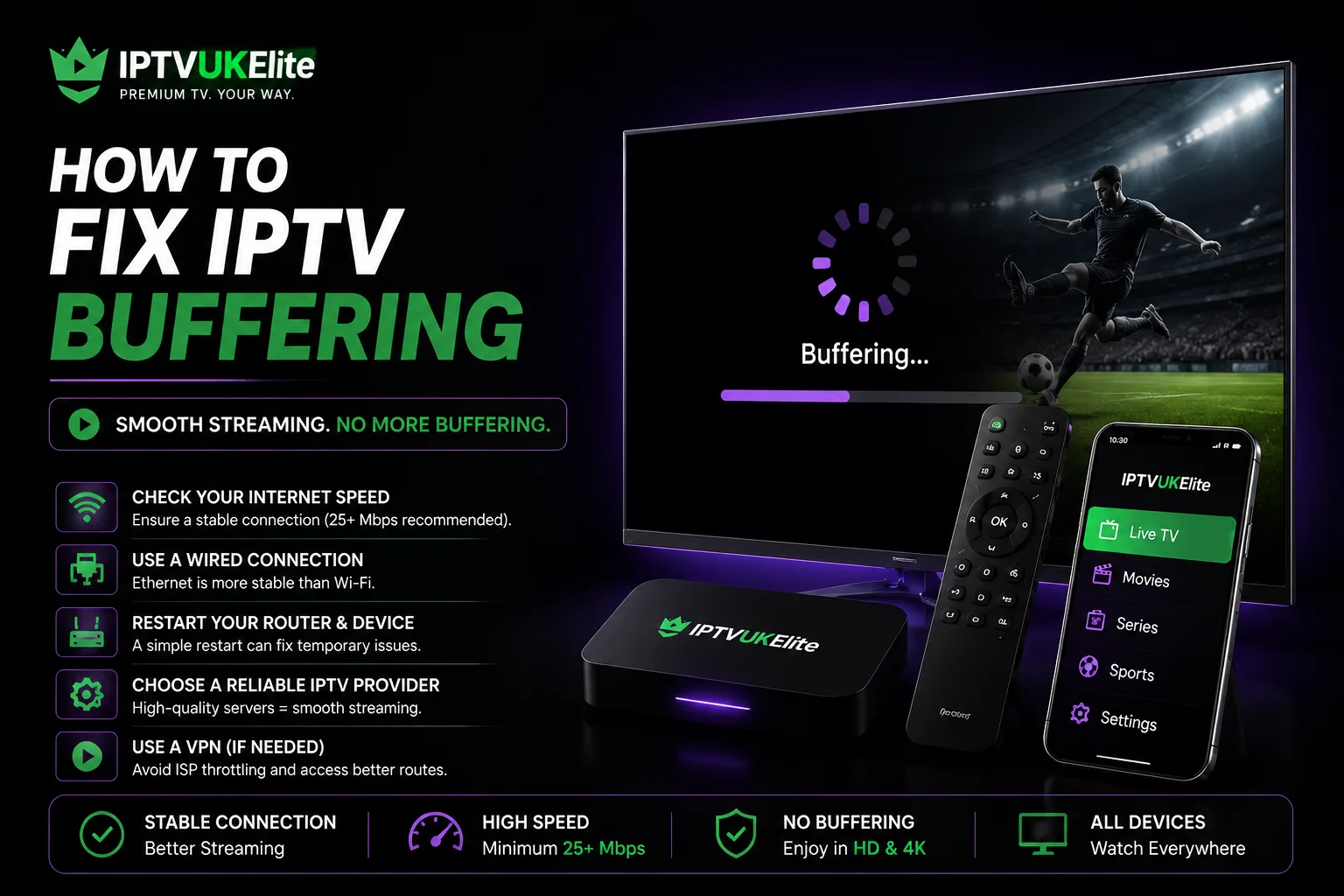
Key Takeaways
- IPTV buffering is almost always caused by one of five things: internet speed, Wi-Fi signal, a VPN, an overloaded device, or the provider's own servers.
- A wired Ethernet connection fixes buffering more often than any other single change.
- Restarting your router and streaming device properly clears issues that a simple app restart won't touch.
- A VPN routed through the wrong server can be the actual cause of buffering, not the fix for it.
- If everything on your end checks out, the picture is on the provider — reliable IPTV depends on UK servers built with real spare capacity, like IPTVUKElite's zero-buffering guarantee.
Buffering is the single most common complaint about IPTV, and the most misdiagnosed. Most people blame the app, restart it, and end up right back where they started a few minutes later. In reality, a stream that keeps stopping and starting is almost always down to one of a handful of specific, fixable causes — and working through them in order solves the problem far faster than guessing.
What Actually Causes IPTV Buffering
Before changing anything, it helps to know what you're actually looking for. Buffering on IPTV generally comes from one of five places: your internet connection doesn't have enough consistent speed, your device is on a weak or congested Wi-Fi signal, a VPN is adding latency it shouldn't, the streaming device itself is low on memory, or — after everything else checks out — the provider's own servers are overloaded. The steps below work through each in the order most likely to actually be the problem.
Step 1: Test Your Actual Internet Speed
Run a quick speed test at fast.com or speedtest.net while nothing else on the network is streaming or downloading. As a rough guide, HD needs around 15-25 Mbps and 4K needs 40 Mbps or more, with extra headroom if other devices in the house are active at the same time. If your speed test comes back well below that, the buffering is happening before the stream even reaches your device — no app or provider can fix a connection that isn't fast enough to begin with.
Step 2: Switch From Wi-Fi to a Wired Connection
If your speed test looks fine but the picture still stutters, the next most likely cause is Wi-Fi itself. Wireless signal weakens with distance, walls and interference from neighbouring networks, and it's shared across every device connected to the router at once. Running an Ethernet cable from the router straight to your Firestick, Android box or Smart TV removes all of that in one step — it's the single change that resolves more buffering complaints than anything else on this list.
Step 3: Restart Your Router and Device Properly
Closing and reopening the IPTV app only clears the app's own cache — it doesn't touch a stuck DNS lookup, a router that's been running for weeks, or a congested Wi-Fi channel. Unplug the router itself for a full 30 seconds before plugging it back in, then separately restart the streaming device — a full power cycle, not just backing out of the app. Doing both, not just one, is what actually clears the underlying issue.
Step 4: Check Whether Your VPN Is the Problem
A VPN is often installed to improve privacy, but the wrong one can quietly become the actual cause of buffering. Every VPN routes your traffic through an extra server first, and if that server is far away, overloaded or not built for high-bandwidth streaming, the added latency shows up as exactly the kind of stuttering people install a VPN hoping to avoid. Try disabling the VPN entirely, or switching to a nearby UK server, and see if playback smooths out — see our full guide on whether you actually need a VPN for IPTV for more detail.
Servers built for peak-time sport
UK-based infrastructure with real spare capacity and a zero-buffering guarantee, from £4.92/month.
Get 12 Months — 49% OffStep 5: Pick the Right Player App and Buffer Setting
Not every IPTV player app handles a shaky connection the same way. Apps like IPTV Smarters Pro and TiviMate include a buffer size setting, usually set low by default — raising it gives the app a slightly larger cushion of pre-loaded video, which smooths over brief dips in connection speed at the cost of a second or two of extra delay when you first press play. See our comparison of the best IPTV player apps if you're not sure which one to use.
Step 6: Close Background Apps and Free Up Memory
Older Firestick and Android box hardware has limited memory, and too many apps left running in the background can starve the IPTV player of the resources it needs to decode video smoothly — especially in 4K. Close other open apps before you start streaming, and if buffering only happens on one specific device while others are fine, that device's hardware is likely the actual bottleneck.
When It Isn't You — the Provider's Servers
If you've tested your speed, gone wired, restarted everything properly, ruled out your VPN and freed up memory, and the stream is still stuttering — especially during a big match when everyone else is watching too — the problem has moved from your setup to the provider's. Plenty of cheap IPTV resellers oversell the same server capacity to far more subscribers than it can actually handle, which is exactly when buffering shows up hardest: kick-off on a Saturday. That's a server problem no router restart will ever fix.
IPTVUKElite runs on UK-based servers built with genuine spare capacity for peak-time football, boxing PPV and F1 race weekends, backed by a zero-buffering guarantee — so once your own connection is sorted, the picture stays smooth when it matters most.
Quick Buffering Fix Checklist
- Test your speed. At least 25 Mbps for HD, 40+ Mbps for 4K.
- Go wired. Ethernet beats Wi-Fi for consistency.
- Power-cycle properly. Router and device, not just the app.
- Check your VPN. Disable it or switch to a UK server.
- Raise the buffer setting. In IPTV Smarters Pro or TiviMate.
- Free up memory. Close background apps on older devices.
The Verdict
Buffering almost always has a specific, fixable cause rather than being a mystery — and it's rarely the app itself. Work through your connection speed, switch to a wired connection where you can, restart the router and device properly, double-check your VPN, and give the player app a slightly bigger buffer. If a stream still stutters after all of that, particularly during peak kick-off times, the issue sits with the provider's server capacity — which is exactly what a zero-buffering guarantee on real UK infrastructure is built to solve.
Frequently Asked Questions
Why does my IPTV keep buffering even with fast internet?
Fast broadband doesn't guarantee a fast connection to your streaming device. Weak Wi-Fi signal, an overloaded router, background downloads, a poorly chosen VPN server or an underpowered device can all cause buffering even when a speed test shows plenty of bandwidth.
Does a VPN cause IPTV buffering?
It can. Routing your stream through a distant or congested VPN server adds latency and can cut your effective speed significantly. Try disabling the VPN or switching to a nearby UK server to see if playback improves.
Is Wi-Fi or Ethernet better for IPTV?
Ethernet is more reliable for IPTV. A wired connection removes signal interference, distance from the router and Wi-Fi congestion from other devices — the most common causes of intermittent buffering.
What internet speed do I need for 4K IPTV?
A stable connection of at least 40 Mbps is recommended for smooth 4K streaming, with more headroom if other devices on the same network are also active. HD typically needs 15-25 Mbps.
Does IPTVUKElite guarantee no buffering?
Yes. IPTVUKElite runs on UK-based servers built with spare capacity for peak-time sport, backed by a zero-buffering guarantee — as long as your own connection and device meet the basic requirements above.
Can restarting the app fix buffering, or do I need to restart the router?
Restarting the app only clears the app's own cache. If the problem is your router's connection, DNS or an overloaded Wi-Fi channel, only a full router restart — not just an app restart — actually clears it.
Fixed your connection? Now try a service built not to buffer
25,000+ channels, true 4K, zero-buffering UK servers — 12 months for £4.92/mo, free 24-hour trial, no card required.
Claim Your Best Deal — 49% Off